
TG Video Downloader: The Telegram Video Downloader Chrome Extension
 Mack Wong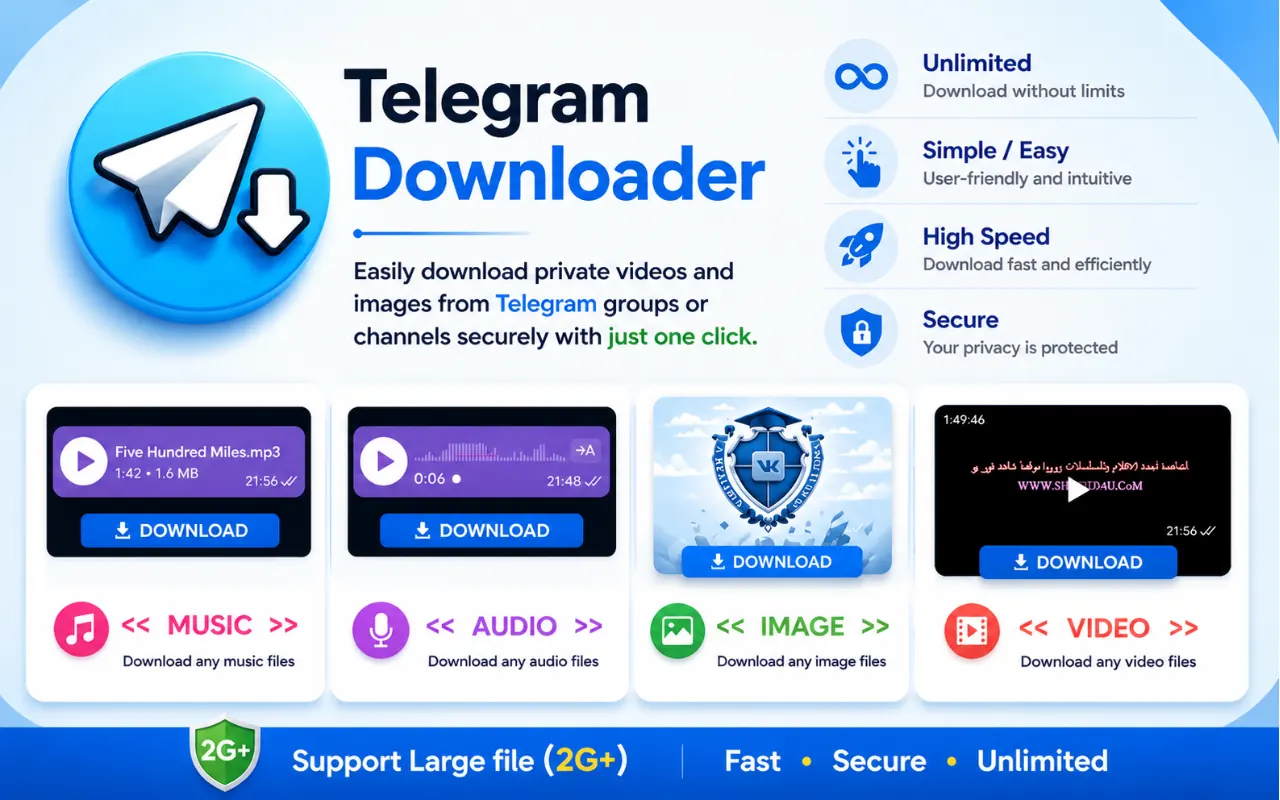
TG Video Downloader: The Telegram Video Downloader Chrome Extension
Direct answer: The TG Video Downloader Chrome extension adds a download control to videos and photos you already can view in Telegram Web, so you can save media from chats, groups, and channels without pasting links into third-party sites. Install it from the Chrome Web Store, open web.telegram.org, load the media, and click download. It does not bypass content protection or view-once messages.
This page is a Chrome + Telegram Web walkthrough only — numbered steps, private-chat notes, and a troubleshooting table.
What This Extension Is For
A telegram video downloader chrome extension solves one specific gap: Telegram Web often plays media without a clear Save button. Desktop and mobile apps usually already have native save. If you work in the browser all day, the extension is the companion tool.
Product links you will need:
- Homepage: homepage
- Chrome Web Store: Telegram Video Downloader listing
- How-to with visuals: How to use
- Telegram Web: Telegram Web
What it does
- Adds a download control on video and photo messages in Telegram Web
- Works in personal chats, groups, and channels you already joined
- Uses your existing Telegram Web session (no separate extension login)
- Saves through the normal Chrome download manager to your Downloads folder
- Handles photos and videos with the same click pattern
What it does not do
| Claim you may see elsewhere | Reality |
|---|---|
| Unlock restricted / protected channels | No — cannot bypass content protection |
| Save view-once / self-destruct media | No |
| Join private channels for you | No — membership comes from Telegram |
| Work inside the Telegram Desktop app window | No — Chrome + Telegram Web only |
| Download chats you cannot open | No |
Before You Start
Confirm this checklist so the steps below match your setup:
- You use Google Chrome (or a Chromium browser that supports Chrome Web Store extensions).
- You can open Telegram Web and sign in.
- The video or photo plays in the chat (access problem ≠ download problem).
- You are not trying to break a channel's restrict-saving setting.
- You will install only from the official Store listing — not a forwarded zip or "mod" file.
Install: Numbered Steps
Think of these as screenshot frames. Do them in order.
Step 1 — Open the Chrome Web Store page
Go to the official listing:
Chrome Web Store
Check the name, publisher context, and reviews the way you would for any extension. Prefer the Store over third-party mirrors.
Step 2 — Add to Chrome
Click Add to Chrome, then confirm Add extension on the permission dialog. Chrome will show what the extension can access. A Telegram Web helper should be scoped to Telegram's web domains, not your entire browsing life.
Step 3 — Pin the icon (optional but useful)
Click the puzzle-piece icon in Chrome's toolbar → find TG Video Downloader → click the pin. You want a quick way to see that it is enabled while you work in Telegram Web.
Step 4 — Open Telegram Web
Navigate to Telegram Web. Sign in with your usual Telegram account (QR or phone flow Telegram provides). The extension does not replace this login and should never ask you to type your Telegram password into a custom form.
Step 5 — Confirm the extension is on
Open chrome://extensions, find TG Video Downloader, and ensure the toggle is On. If you use multiple Chrome profiles, install it on the profile where you actually open Telegram Web.
You are done installing. No separate account is required on tg-video-downloader.net to click download.
Download a Video: Numbered Steps
Step 1 — Open the chat
In Telegram Web, open the private chat, group, or channel that contains the video.
Step 2 — Bring the video into view
Scroll until the message is on screen. Telegram Web loads media lazily; if the thumbnail never expands into a player, wait until the clip can play.
Step 3 — Play or hover so controls appear
Start playback or hover over the player area so media controls render. The extension hooks into media that the page is already showing.
Step 4 — Click the download control
Use the download control added by the extension (see the how-to page for the current UI placement). Chrome should begin a normal file download.
Step 5 — Verify the file
Open Chrome's download shelf or your Downloads folder. Confirm the file size looks complete (not a few KB stub). Rename it if you are archiving many clips from the same chat.
Step 6 — Repeat for more media
For the next video or photo in the same chat, scroll it into view and click again. You do not need to reinstall or re-login between items.
Download a Photo (Same Workflow)
A telegram private video downloader extension that also handles images keeps one habit for both media types:
- Open the photo message or album item in Telegram Web.
- Let the full-resolution image render (open lightbox if needed).
- Click the same style of download control the extension provides.
- Find the image in Downloads.
Albums: download each item as you step through — there is no special "album pack" mode required.
Private Chats and Channels on Telegram Web
"Private" here means invite-gated access, not "magically unlockable."
| Private scenario | Extension behavior |
|---|---|
| You are already a member; media plays; saving not restricted | Download control can appear; save works like other visible media |
| You are not a member | Nothing to download until Telegram lets you in |
| Restrict saving is enabled | Do not expect a legitimate unlock; ask the admin/sender |
| View-once media | Out of scope |
The extension does not treat private media differently at a protocol level. It only adds UI on content already rendering in your tab. That is why a telegram video downloader extension is useful for private archives you already have access to — and useless as a membership cheat.
Extension vs Native Save (When to Use Which)
| Situation | Prefer |
|---|---|
| You are on phone or Telegram Desktop with a clear Save button | Native save |
| You live in Chrome / Telegram Web all day | Chrome extension |
| You need many files from one Web session | Extension (repeat clicks) |
| Content is protected everywhere | Neither — ask the sender |
| You refuse to install browser extensions | Desktop/mobile native only |
Troubleshooting Table
| Symptom | Likely cause | What to try |
|---|---|---|
| No download control at all | Extension disabled or wrong Chrome profile | Enable on chrome://extensions; confirm same profile as the Telegram tab |
| Control missing on one video only | Media not fully loaded / off-screen | Scroll away and back; wait until playback works |
| Control missing on every video in one channel | Content protection | Check Desktop/mobile; if Save is gone there too, stop looking for a bypass |
| Download starts then fails | Network drop or browser blocked the file | Retry; allow downloads for the site; check free disk space |
| File is tiny or will not open | Incomplete stream or wrong asset grabbed mid-load | Fully play/buffer once, then download again |
Works on /k but not /a (or reverse) | Client DOM differences | Switch between Telegram Web (K) and /a, refresh |
| Extension vanished after Chrome update | Extensions reset or blocked by policy | Reinstall from the Store; check enterprise Chrome policies |
| Asked for Telegram password inside a popup | Not a legitimate flow | Remove the extension/site immediately; reinstall only from the official listing |
| Downloads go to an unexpected folder | Chrome download settings | Check Chrome Settings → Downloads path |
| Button appears but click does nothing | Page script error or conflicting extension | Disable other Telegram-related extensions temporarily; hard refresh |
If none of that helps, walk the visual guide again: How to use TG Video Downloader.
Safety Checklist Before You Trust Any Extension
- Install from the official Chrome Web Store URL only.
- Read the permission prompt; leave if it demands unrelated site access you do not understand.
- Never type your Telegram SMS / 2FA code into an extension form.
- Keep Chrome updated so Web client changes and extension updates stay aligned.
- Scan files from strangers the same way you would scan email attachments.
Product overview and positioning: homepage.
Tips for a Smoother Web Workflow
- Prefer one Telegram Web version for a work session (
/kor/a) instead of flipping constantly. - Pin busy archive chats so you are not hunting them in the sidebar.
- Let large videos buffer before clicking download if your connection is unstable.
- Rename batches immediately (
project-demo-01.mp4) so Downloads does not become a pile of random names. - On shared computers, clear the Downloads folder after you finish; the extension does not move files to a private vault for you.
FAQ
Is TG Video Downloader only a Chrome extension?
Yes for this product path: it is a telegram video downloader chrome extension for Telegram Web. Use native save on Android, iOS, and Telegram Desktop.
Do I need to create an account on the website?
No. Install from the Store, sign into Telegram Web as usual, and download.
Can I use it for private channels?
Yes if you already joined and the media is allowed to be saved. No if the channel restricted saving or the media is view-once.
Does it upload my videos to a server?
The intended flow saves from your browser session to your machine via Chrome's download UI. Prefer that over paste-a-link websites that re-host the file.
Why is this better than DevTools "save as"?
DevTools works for some technical users but is slow, easy to mis-click, and painful for many files. The extension is the repeatable path for the same job.
Where do I get help-style screenshots?
See the how to use guide.
Quick Recap
- Install from the Chrome Web Store.
- Open Telegram Web.
- Load the video or photo.
- Click the extension download control.
- Confirm the file in Downloads.
- If save is missing on every Telegram client, you are facing content protection — not a missing Chrome button.
For feature context beyond this tutorial, start at the homepage.